How to Pay with a Lightning Wallet
Checkout shows a QR code for your total. Any wallet that pays Lightning invoices can pay it, from anywhere in the world — the payment lands in seconds and your download unlocks at once. Nothing is charged until you pay the code.
In the US with Cash App? That's the fastest way — see How to Pay a QR Code with Cash App.
No Cash App? We recommend Strike:
With Strike, you pay the code straight from a dollar balance, like Cash App, with no bitcoin to buy first. You can connect a bank account (ACH), initiate a wire transfer, or link a debit card.
It's US-based exchange with high limits and small fee, supports more than 100 countries.
Download Strike on the App Store or Google Play.
Pay a QR code in 3 steps with Strike Wallet
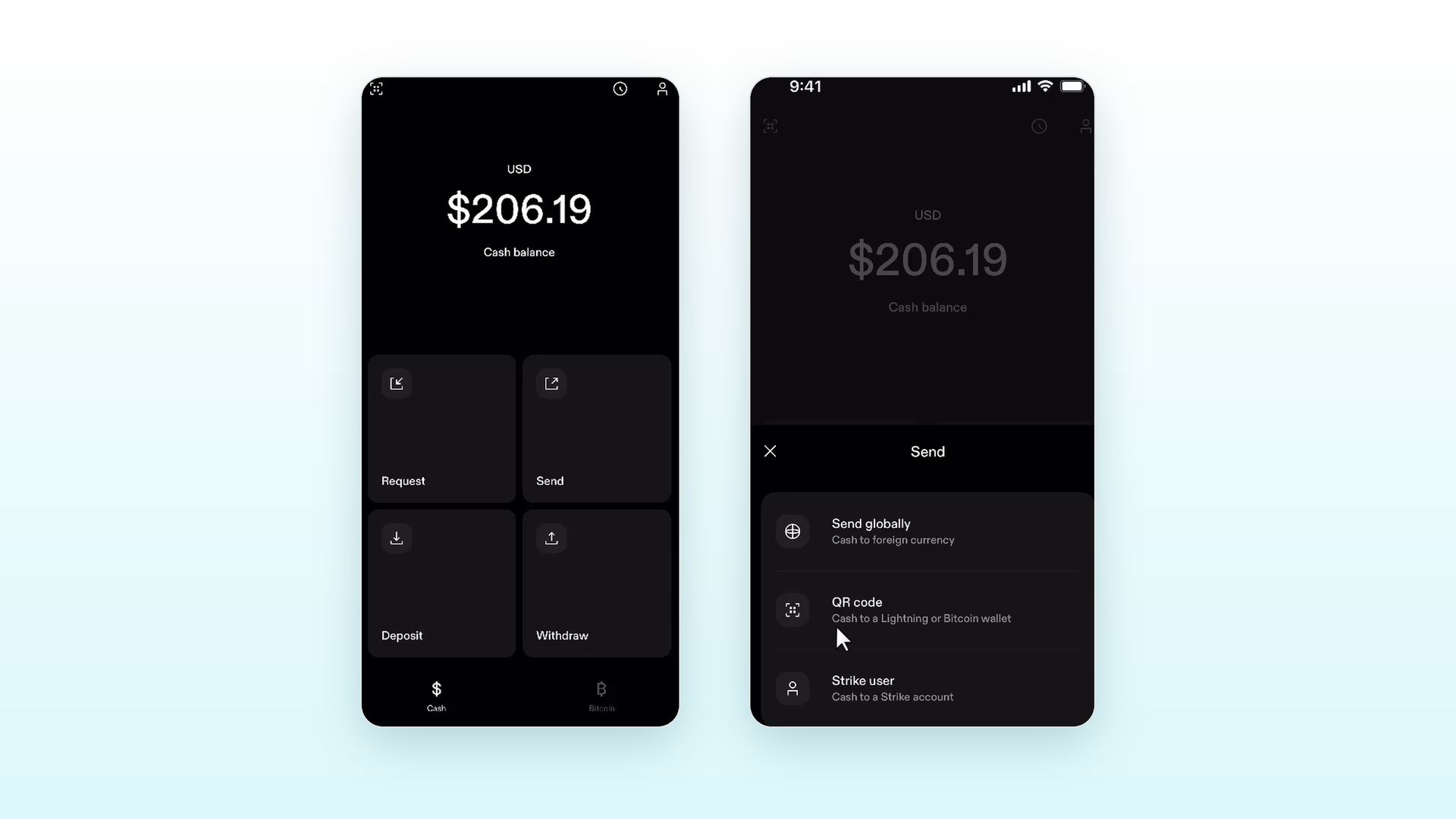
Step 1 — Open your wallet and tap Send or Scan
In Strike, tap Send or the scan icon on the home screen. Then tab "QR code".
Step 2 — Scan the QR code on the checkout page
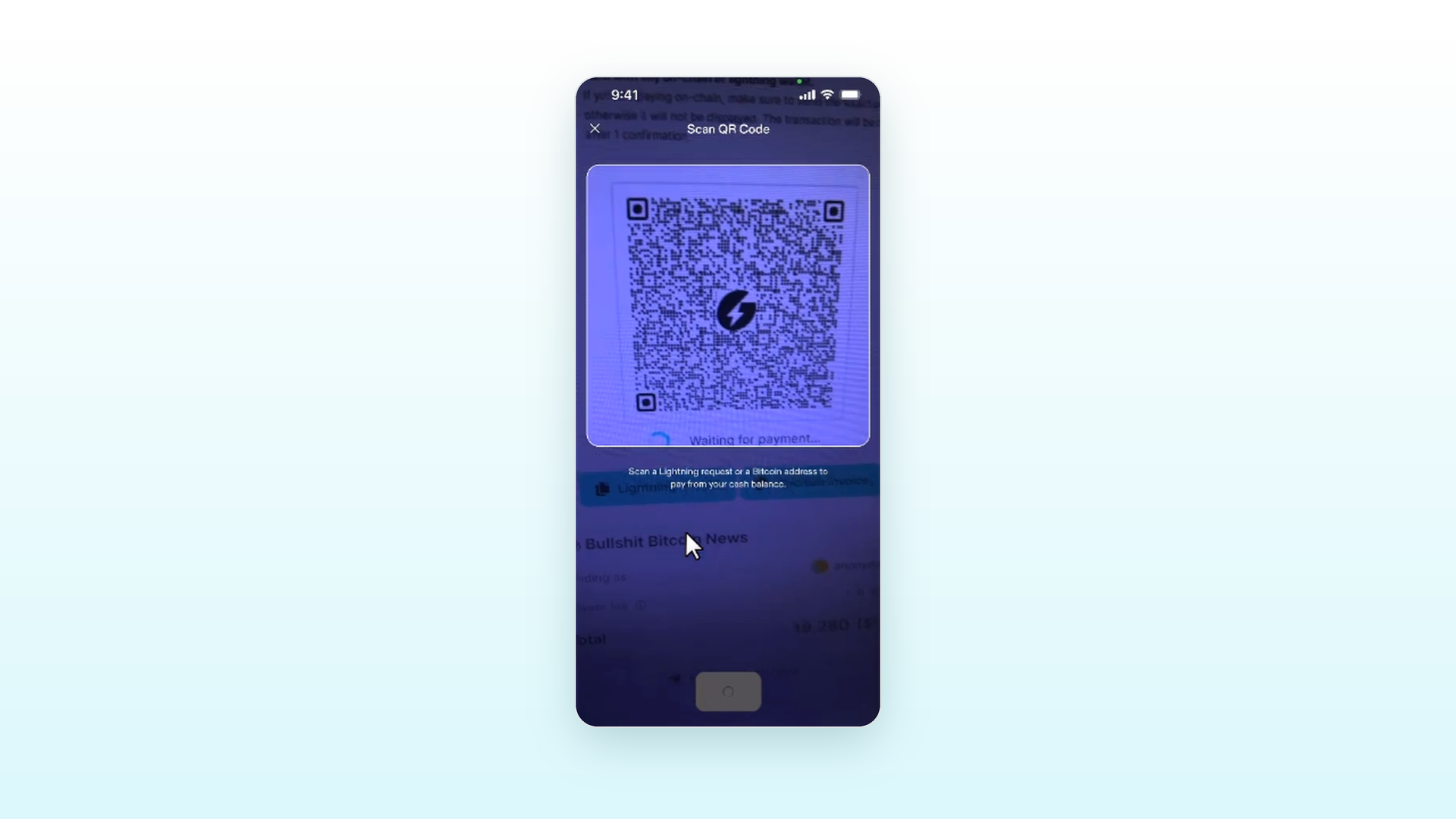
Point your camera at the code. Paying on the same phone? Tap Open in wallet under the code, or Copy invoice and paste it into your wallet.
Step 3 — Check the amount and confirm
The code already carries your total and the order's description — don't change them. In Strike, pay from your cash balance, then tap Confirm. A few seconds later the checkout page says Payment received.
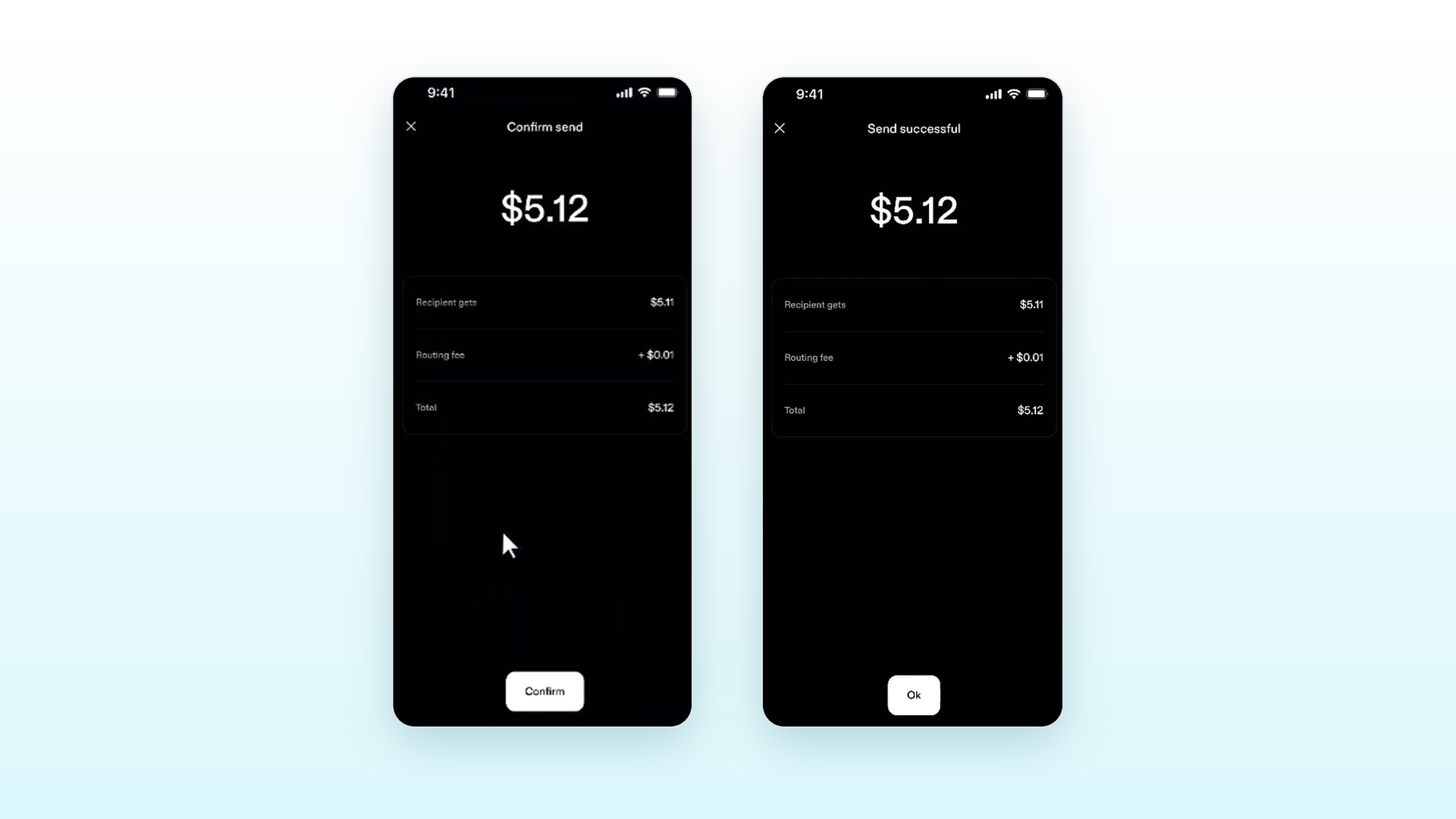
Congratulations! Your payment is complete. Now you can download your files.
Get Strike Wallet— our recommended lightning wallet
 Strike is the best choice if you don't have Cash App:
- Pay from dollars. Add money from your bank or debit card; Strike converts it into the Lightning payment for you. You never buy or hold bitcoin.
- Fast to set up. Download, verify your identity once, add cash, pay.
- Built for payments. Lightning is how Strike sends money, so codes like ours pay in seconds.
Download Strike on the App Store or Google Play.
Step 1 — Sign up and verify
Open Strike, create your account and complete identity verification.
Step 2 — Link your bank or debit card
Go to Account → Payment methods → Add method and link a bank account or a debit card.
Step 3 — Add cash
On the home screen, open your cash balance and tap Add cash (or Deposit). Enter the amount and tap Confirm — the dollars land in your cash balance, ready to pay.
You can also deposit USDT ( Tether) via the Tron network, typically processed in a few seconds or minutes. The minimum per deposit is 20 USDT. Don’t send smaller amounts, deposit different assets, or transfer from other blockchains, as doing so may render funds irrecoverable.
Strike's own guide covers banks, minimums and other ways to deposit: How to deposit cash on Strike. Strike isn't available in every country — if it doesn't serve yours, use one of the wallets below.
Other Lightning wallets
Every one of these pays the same code the same way.
 Wallet of Satoshi — simplest to start. No setup: install it and you can receive and pay straight away.
 Phoenix — best for self-custody. You hold your own keys; Phoenix manages the Lightning side for you.
 Blink — easy to set up, works in many countries.
- Already on an exchange? Coinbase, Kraken and Binance can send over Lightning — choose the Lightning network when you send.
Adding money to these wallets: tap Receive, create a Lightning invoice for the amount you want, and pay it from your exchange on the Lightning network — it arrives in seconds. A Bitcoin (on-chain) address works too, but takes longer to arrive and costs a higher network fee.
Good to know
- The code is valid for 60 minutes. If it runs out, nothing is charged — press Buy now again for a new one.
- One code, one payment. If your wallet says paid, don't pay again — the checkout page updates within seconds. Still waiting after a minute? Tap Having trouble paying? Tell us under the code.
- Send on the Lightning network, not on-chain. A bitcoin address won't pay the code; only a Lightning payment will.
- Wallet fees are your wallet's. Each app shows its fee before you confirm; the shop charges exactly the total on the page.